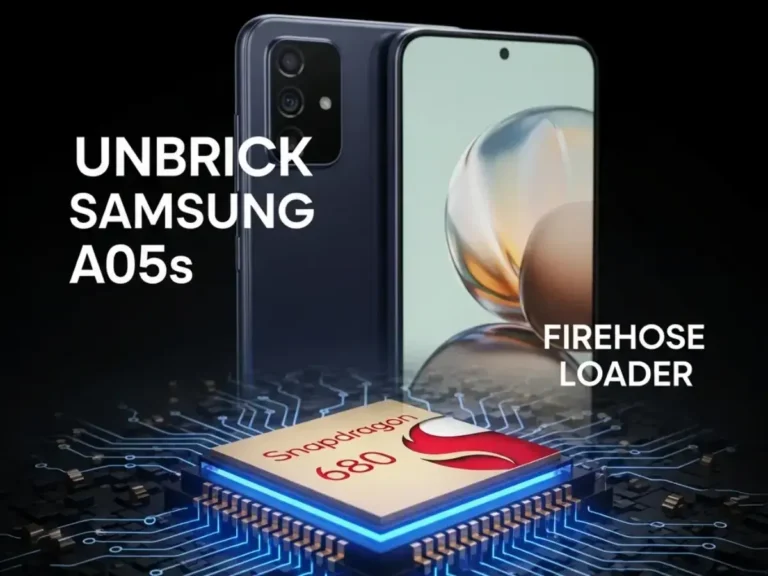
Samsung Galaxy A05s (SM-A057F) Firehose Loader (Snapdragon 680) – Download

Security Status: SAFE
Scanned by 65+ antivirus engines • No threats detected
Screenshots & Preview
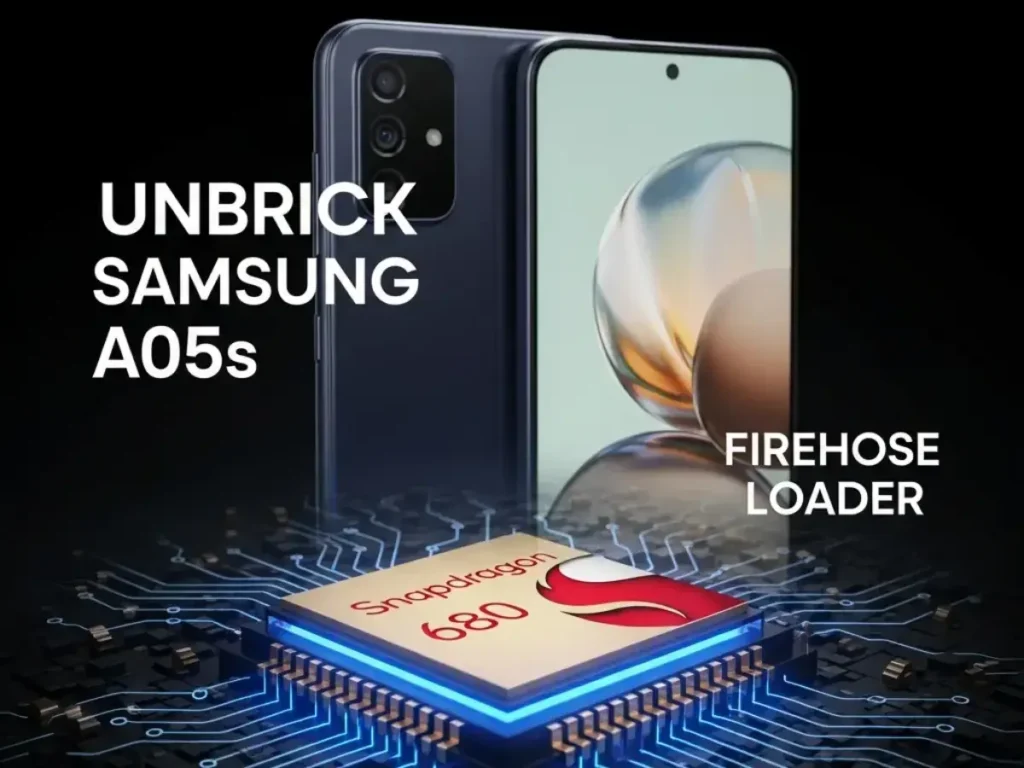
Click on images to view full size (1 images)
Revive your dead Samsung. Download the official Samsung Galaxy A05s (SM-A057F/M) Firehose Loader. This specialized Snapdragon 680 programmer allows unbricking via EDL mode when Download Mode is inaccessible.
The Samsung Galaxy A05s (Models: SM-A057F, SM-A057M, SM-A057G) is a budget-friendly device powered by the Qualcomm Snapdragon 680 (SM6225) processor. Unlike standard software issues that can be fixed via Odin (Download Mode), a “Hard Brick” often results in the device becoming completely unresponsive. In this state, the phone is only detected by the PC as Qualcomm HS-USB QDLoader 9008. To revive it, you need the specific Firehose Loader (Programmer) file tailored for the Samsung SM6225 platform.
File Information & Specs
| File Name | prog_firehose_ddr_samsung_a05s.elf |
| Device Name | Samsung Galaxy A05s |
| Model Variants | SM-A057F, SM-A057M, SM-A057G |
| Chipset | Snapdragon 680 (SM6225) |
| File Type | EDL Loader / Firehose Programmer |
| Function | Unbrick, Dead Boot Repair, Flash Firmware, KG Locked Fix |
| Auth Requirement | High (Requires Pro Tool) |
| Connection Mode | EDL Mode (9008) via Test Point |
Supported Tools
Samsung devices utilize high-security bootloaders (Knox/KG). Standard free tools (like QFIL) often fail without a patched loader or specific authentication. We recommend using professional service tools:
- UnlockTool (Highly Recommended – Select ‘Samsung A05s’ in the Odin/Qualcomm tab)
- Chimera Tool (Auto-detects via Test Point)
- UMT (Ultimate Multi Tool) – QcFire
- Hydra Tool
- Pandora Tool
How to Use Firehose Loader (Test Point Method)
- Disassemble Device: The Samsung A05s requires Test Point access to force EDL mode if the screen is dead. Carefully remove the back panel and the motherboard shield.
- Locate Test Points: Find the two specific test points located near the battery connector or display ribbon (refer to Test Point image).
- Short & Connect: Disconnect the battery. Short the two points with metal tweezers and simultaneously connect the USB cable to the PC.
- Check Driver: Ensure Device Manager shows Qualcomm HS-USB QDLoader 9008.
- Open Tool: Launch your preferred tool (e.g., UnlockTool).
- Select Loader: In the Qualcomm tab, select the brand “Samsung” and model “A05s”. The tool will auto-load the internal programmer.
- Flash/Unbrick: Load the firmware (BL, AP, CP, CSC) if needed, or click “Unbrick” to restore the boot partition.
⚠️ IMPORTANT DISCLAIMER:
This method is for Repair Purposes Only. Flashing the wrong loader on a Samsung device can trip the Knox counter or permanently damage the RPMB partition. Ensure your model number (A057F vs A057M) matches exactly before flashing.
Easy Installation
Simple setup process with clear instructions
Safe & Secure
Scanned and verified free from malware
Fast Download
Multiple mirror servers for fastest download speeds
Minimum Requirements
Recommended
- Latest version with all current features
- Bug fixes and performance improvements
- Security updates and patches
- Compatibility improvements
Rate & Review This Software
User Reviews
No reviews yet. Be the first to review!
About the Author / Developer
📱 Related Apps You May Like





Download Mirror Options
Choose your preferred download server:
How to Install
- Click the Download button above
- Wait for download to complete
- Run the installer file (.exe)
- Follow the installation wizard
- Launch the application
How to Extract (ZIP/RAR)
- Download and install WinRAR or 7-Zip
- Multi-part archives: Download all parts (.part1.rar, .part2.rar) into the same folder
- Right-click on any one part (usually .part1.rar)
- Select "Extract Here" or "Extract to folder"
- Tool will auto-extract all parts