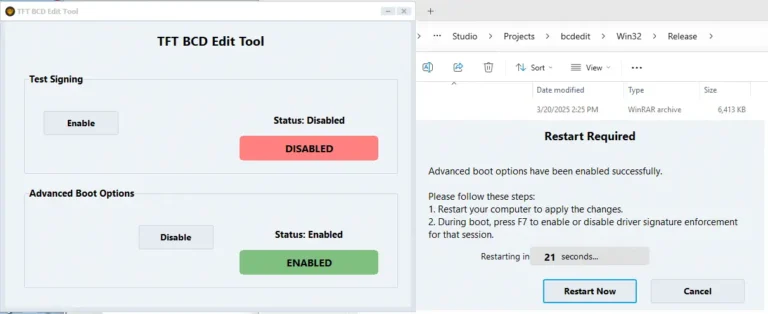
TFT BCD Edit Tool Windows USB Driver Signature Disable Enabler

Security Status: SAFE
Scanned by 65+ antivirus engines • No threats detected
Screenshots & Preview
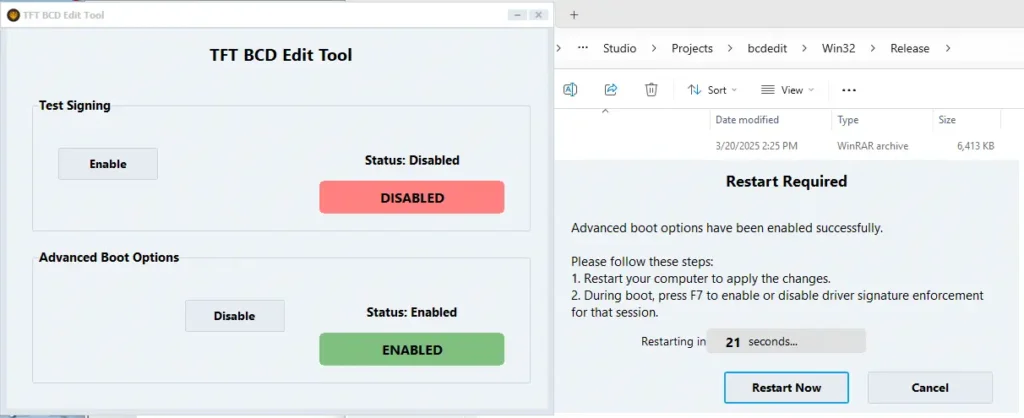
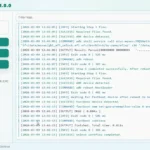
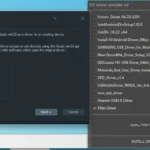
Click on images to view full size (1 images)
| File Name: | Windows USB Driver Signature Disable Enabler |
|---|---|
| Version: | V1.0.0 |
| Status: | 100% Tested |
| File Size: | 1 MB |
| Compatible OS: | Windows 7, 8, 10, 11 (32-bit & 64-bit) |
Are you struggling with unsigned drivers for your TFT BCD Edit Tool displays or USB devices? Our TFT Unlock Tool Windows USB Driver Signature Disable Enabler software provides an easy and safe solution to bypass Windows driver signature enforcement.
What Is Driver Signature Enforcement and Why It Matters
Windows operating systems, especially Windows 10 and 11, enforce strict driver signature verification to enhance system security. While this protects your computer from potentially harmful drivers, it can create frustrating roadblocks when installing legitimate but unsigned drivers for devices like:
- TFT displays
- Custom USB devices
- Development hardware
- Legacy equipment
- Specialized industrial interfaces
Introducing the TFT BCD Edit Tool Windows USB Driver Signature Disable Enabler
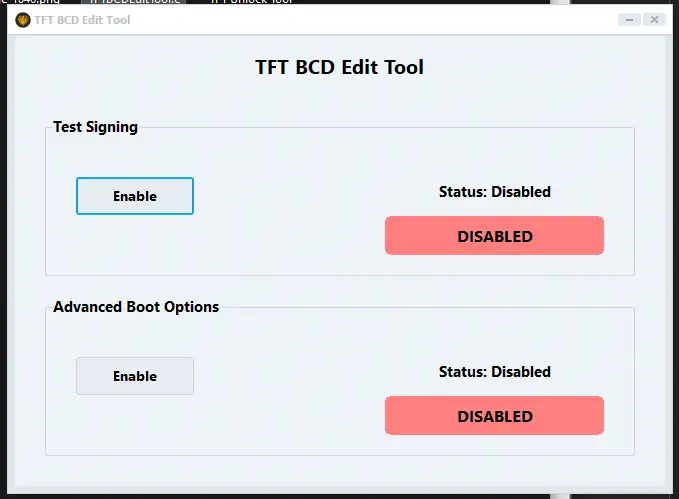
Our specialized utility provides a user-friendly interface to manage Windows Boot Configuration Data (BCD) settings that control driver signature enforcement. Unlike complex command-line methods, our tool offers:
- One-click enabling/disabling of Test Signing mode
- Simple management of Advanced Boot Options
- Real-time status monitoring
- Automatic administrator privilege detection
- Guided system restart process
Key Features Explained
Test Signing Mode
- Enable test signing with a single click
- Monitor current test signing status
- Disable test signing when no longer needed
- Apply changes with guided system restart
- Advanced Boot Options
For situations requiring more flexibility, our Advanced Boot Options feature provides:
- Access to the F8 boot menu on startup
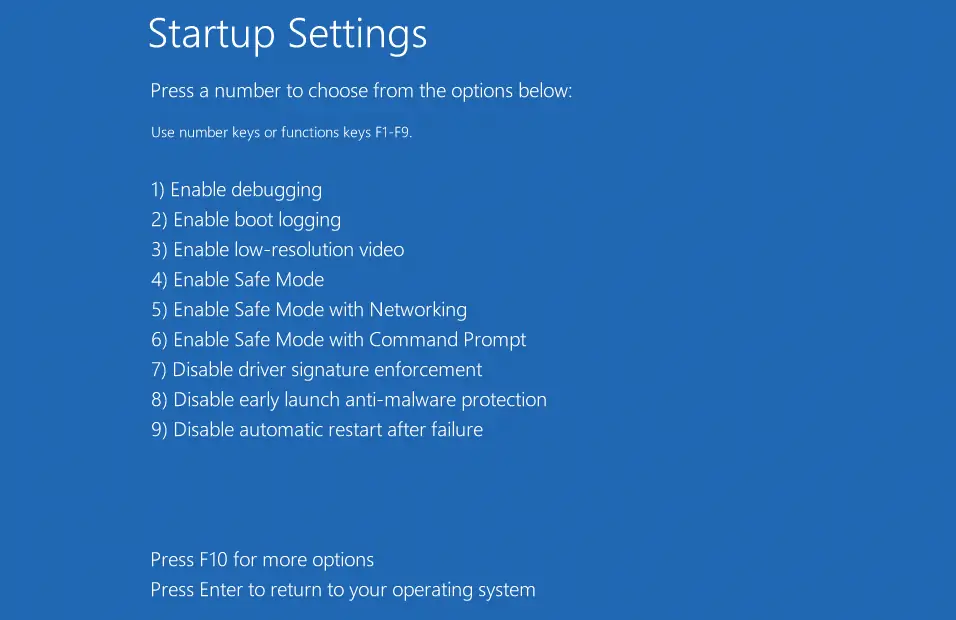
- Option to disable driver signature enforcement for a single session
- No permanent system modifications
- Greater control over startup options
How to Use the TFT BCD Edit Tool Windows USB Driver Signature Disable Enabler
Step 1: Install and Launch
Download and install our utility. Right-click and select “Run as administrator” to ensure proper functionality.
Step 2: Check Current Status
The application automatically detects and displays your current settings for both Test Signing and Advanced Boot Options.
Step 3: Enable Required Features
Depending on your needs:
- Click “Enable” under Test Signing to permanently allow unsigned drivers
- Click “Enable” under Advanced Boot Options to access the F7 option during boot
Step 4: Restart Your Computer
Follow the restart countdown prompt to apply changes. Your system will restart automatically, or you can click “Restart Now” to proceed immediately.
Step 5: Install Your Drivers
After restart:
- If you enabled Test Signing, Windows will now accept unsigned drivers directly
- If you enabled Advanced Boot Options, press F7 during startup to temporarily disable driver signature enforcement
System Requirements
- Windows 7, 8, 10, or 11
- Administrator privileges
- 10MB of disk space
- Microsoft .NET Framework 4.5 or higher
Disclaimer: Disabling driver signature enforcement may reduce system security. Only install drivers from trusted sources. We recommend re-enabling driver signature enforcement after installing your required drivers.
Easy Installation
Simple setup process with clear instructions
Safe & Secure
Scanned and verified free from malware
Fast Download
Multiple mirror servers for fastest download speeds
Minimum Requirements
Recommended
- Latest version with all current features
- Bug fixes and performance improvements
- Security updates and patches
- Compatibility improvements
Rate & Review This Software
User Reviews
No reviews yet. Be the first to review!
About the Author / Developer
📱 Related Apps You May Like



Download Mirror Options
Choose your preferred download server:
How to Install
- Click the Download button above
- Wait for download to complete
- Run the installer file (.exe)
- Follow the installation wizard
- Launch the application
How to Extract (ZIP/RAR)
- Download and install WinRAR or 7-Zip
- Multi-part archives: Download all parts (.part1.rar, .part2.rar) into the same folder
- Right-click on any one part (usually .part1.rar)
- Select "Extract Here" or "Extract to folder"
- Tool will auto-extract all parts